
Shipping in Evolution ERP now has its own hub. Every dispatch moves through one screen from ready to delivered, whether it goes by carrier, on your own truck or with the customer. You can see what’s late, what has no freight cost and what’s been charged below cost while there’s still time to fix it.
Where to find it
Choose Shipping in the side menu, then Shipping Hub. Anyone with access to Projects can use it. Across the top, pick a lane, a branch and a period. Evolution remembers your choice.
- Freight: a carrier takes it.
- Own delivery: your own truck delivers it, planned on a runsheet and signed for on delivery.
- Customer collect: the customer picks it up and signs for it.
Overview: catch problems early

Exceptions sit at the top of the Overview and list the dispatches that need a look:
- late or flagged;
- committed with no con note;
- no freight cost entered;
- charged below cost, or over the quoted freight;
- freight charged twice;
- delivered but still a draft.
Below the exceptions, the period’s figures sit beside the previous period’s: what shipped in each lane, freight spend, how much you recovered, margin, how you went against quote, average days to deliver, and how many were signed for. Freight by carrier and a weekly chart show where the money goes.
To Dispatch and Book
To Dispatch shows the call-ups that are due, lines ready to go and draft dispatches, so you can create a dispatch on the spot. If an account is on stop credit, you’ll see it there.
Book lists the freight dispatches you still have to book, with quick filters for Ready, Missing details and No method. You arrange the freight with your carrier as you do now, and Evolution keeps the details. It also points out dispatches that could travel together because they share an address, a carrier and a day.
Choose Book… and a panel opens for:
- the carrier and service, and the con note;
- packages, from your own package types;
- gross weight, weighed or estimated;
- your freight cost and the charge to the customer.
Save & next (or Enter) moves straight to the next dispatch, so you can key in a day’s freight without reaching for the mouse. Tick several dispatches to set the carrier, add them to a manifest or commit them in one go.
Manifests
A manifest groups one carrier’s consignments from one branch on one day, with a place for the driver to sign. Note the carrier’s pickup reference and window on it, then print it. When the truck leaves, choose Mark collected: everything on the manifest moves to In transit with today’s ship date.
Track
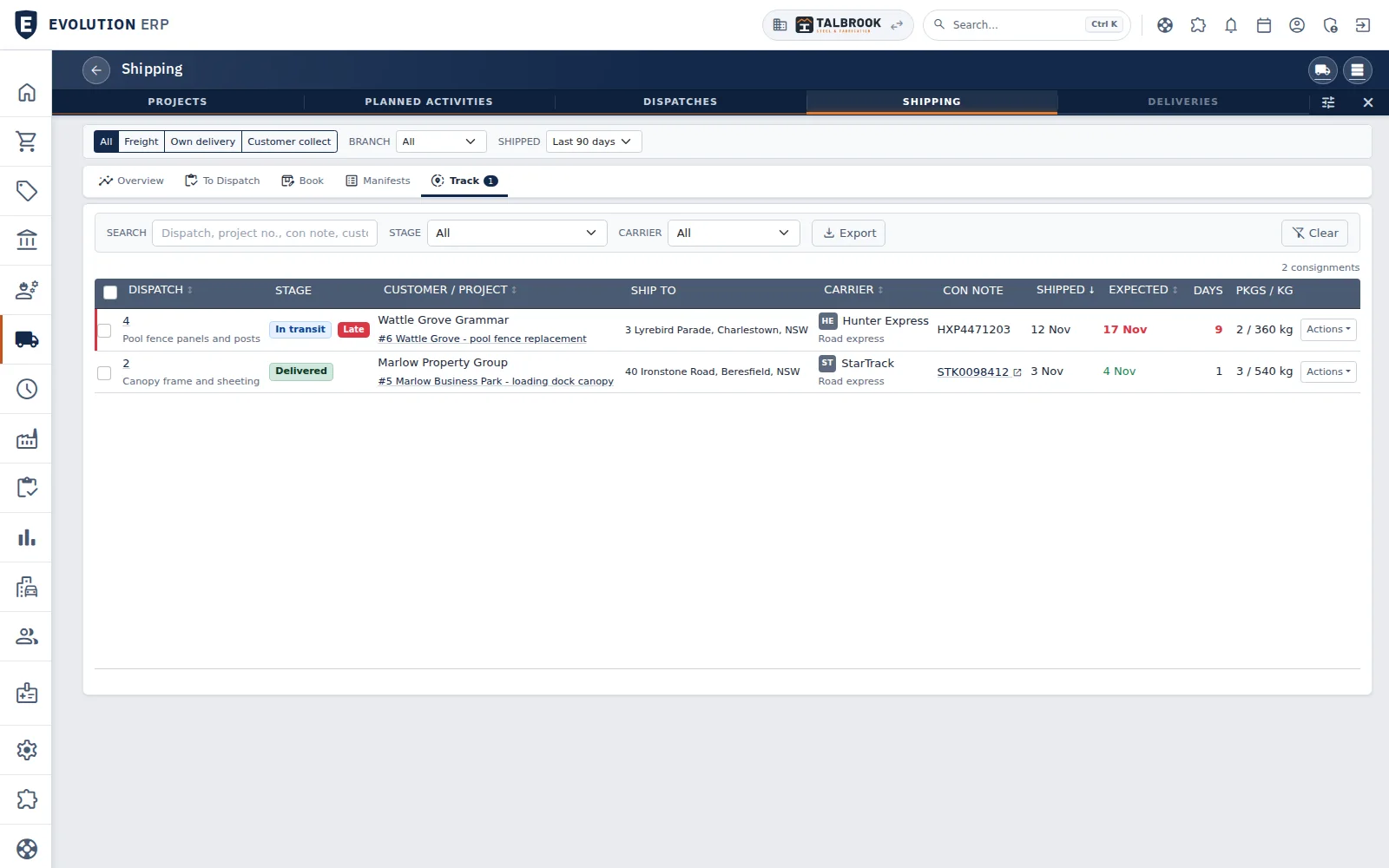
Track lists every consignment with its stage, carrier and con note. The con note links to the carrier’s own tracking page. The expected date is the ship date plus the carrier’s transit days, and anything past it shows Late in red.
From here you can mark consignments in transit or delivered, flag an exception or resend the customer’s tracking email. You can also filter the list and export it to CSV.
Your own truck, and collections
On the Own delivery lane, Schedule takes the place of Book. It lists your deliveries by date with the runsheet, driver and vehicle each is on. On the Own delivery and Customer collect lanes, Proof of Delivery shows what has gone and whether the customer has signed for it.
Freight on the invoice, and a tracking email
The freight charge on a dispatch becomes a freight line on the customer’s invoice. The freight cost is kept for your own records, so you can see your margin on freight.
Evolution can also email the customer their tracking details: the carrier, the con note, the number of packages and a Track your delivery button. Dispatches commit when they’re delivered, or you can tick to commit as you book.
The Shipping hub doesn’t need a plugin or a carrier account to be connected, and it works whether or not you sell through an online store.
Prefer to watch? The Shipping hub is at 2:28 in the What’s new video. Delivery and dispatch in Evolution ERP