
The November release is live for every Evolution ERP customer. It gives Evolution a new look and rebuilds the home page and many of the screens you use every day, so the things you need are easier to find and quicker to work with.
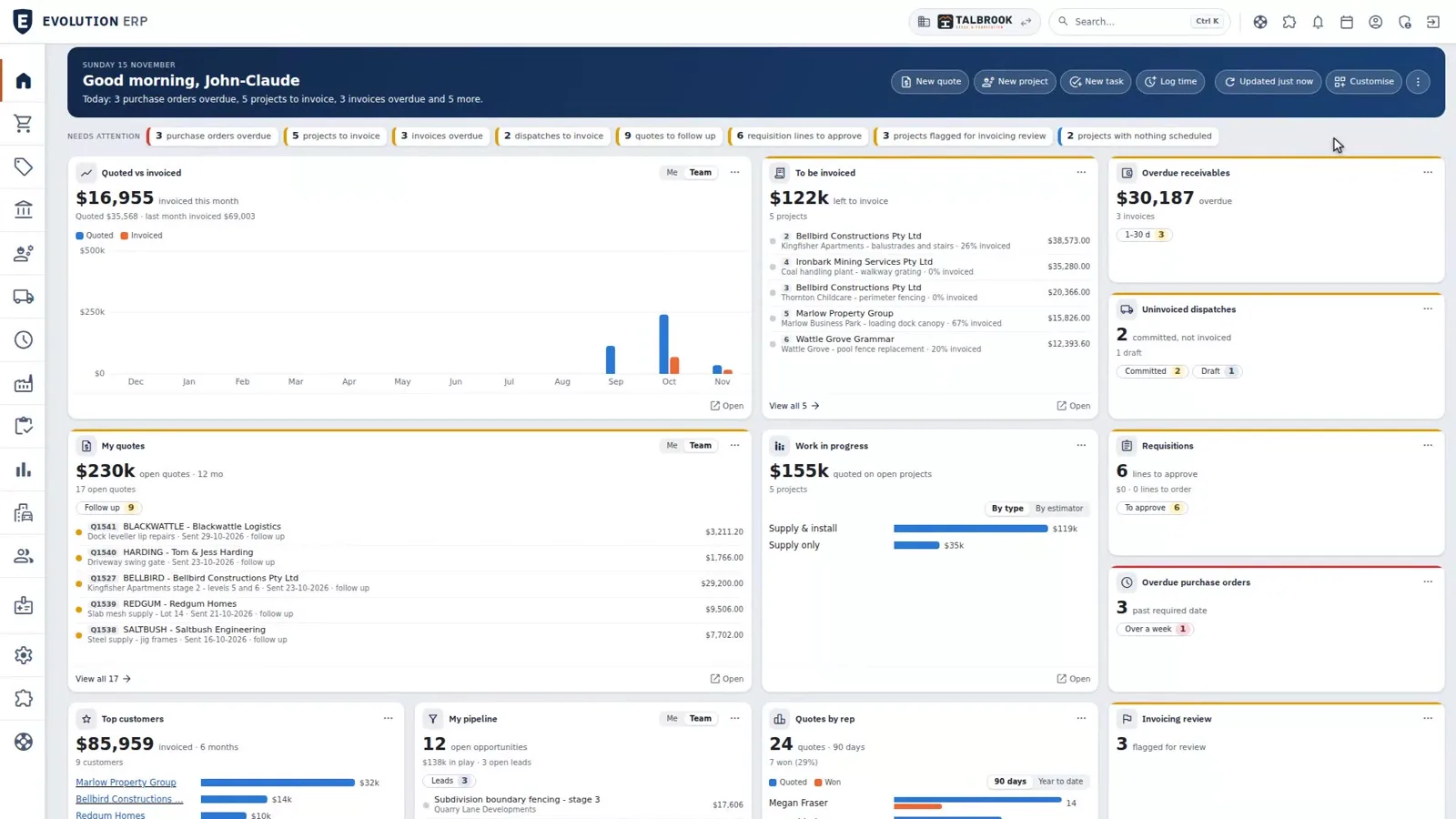
Already a customer? Evolution offers you the What’s new tour on your Home screen. It takes about 3 minutes, and you can watch it again at any time: open your account menu (top right) and choose What’s new tour.
A new look, and a cleaner page header
Evolution ERP now wears the same navy and orange as our new website. At the top of a rebuilt page you’ll find only the back button, the page title, who else is viewing, and the help buttons. If someone else has the same record open, their first name shows as a badge, so you can check with them before you both change it.
Print, Email, Commit and the other actions sit in the band underneath, beside the record’s name and status. Delete, Void and Disable are under More.
Save is at the bottom
A Save changes bar stays at the bottom of the window, whichever tab you’re on, and Evolution asks before you leave with unsaved changes. On Accounts, Contacts, Sites, Leads and Projects, each card has its own Edit and Save instead.
A new home dashboard
Home opens with Needs attention across the top: the purchase orders, invoices, quotes and Projects waiting on you. Choose Customise to add, move and resize widgets. Prefer the old board? Switch to the classic dashboard from the menu at the top right of Home, and come back at any time.
Faster lists
Quick filter chips with counts sit above each list, and Search looks across more fields. Click a column heading to sort, or press / to jump straight to Search. Save the filters you use as My views and pin your favourite.
Rebuilt record pages
- Key figures sit in a strip across the top of the record.
- A row of steps under the title shows where the record is up to. Click a step to act on it, such as moving an opportunity on, sending an invoice to Xero, or opening the tab that needs attention.
- Tabs have the same names and order from one record to the next. Click the title to rename it.
- Evolution points out possible duplicates, such as a contact or customer that looks like one you already have.
Tasks, calls and notes on every record
The Tasks tab shows what’s still to do and, beside it, everything that has happened on the record. Add a task, log a call or add a note from the same place, and pin a note to keep it on top.
Full CRM: the opportunity pipeline
A pipeline board shows a column for each stage, with the open and weighted value and what needs attention across the top. Drag a card to move it on. Each opportunity has its own page: the stage path, next steps, quotes, tasks, files, time and a map in one place.
Full CRM is included in the per-user price like every other module. A sales administrator switches it on from the Opportunities page, and can switch back at any time. CRM in Evolution ERP
Planned activities
Drag an activity to another day on the rebuilt calendar; nothing moves until you confirm. Adding or editing an activity shows a 7-day planner, so you can see who is free before you book. Projects and accounts show their planned activities as a list or a Gantt chart.
Map View, rebuilt
One filter strip at the top, and a side panel with a legend, the results and anything not shown. Activity pins are coloured by activity type.
The Shipping hub
Shipping, in the side menu, follows every dispatch from ready to delivered on one screen: To Dispatch, Book, Manifests and Track. Record one freight booking for several dispatches, print a manifest for the carrier’s pickup, and see what’s late or has no freight cost. Your own deliveries and customer collections get a schedule and proof of delivery. Delivery and dispatch
Do Not Invoice, on Project costing
A new D.N.I. (Do Not Invoice) report lists the costs on a Project that won’t be billed; open it from the D.N.I. card on the Project’s costing tab. On the WIP Summary report, click a D.N.I. figure to see what makes it up. And ticking Ignore Uninvoiced Value when you close a Project now asks for a reason. Project costing
Getting started, for new staff
New people on your team get their own Getting started tour when they first sign in: finding their way around, lists and record pages, the home dashboard and their profile, with a series of six short videos to work through in order.
Where to find help
Rebuilt pages have Docs and Video buttons at the top, for help with the screen you’re on. Videos can dock in a corner so you can follow along while you work. The help centre has 140+ pages, written by the people who build Evolution ERP. Open the help centre
Questions about any of it? Call us on 02 4030 0730. The people who build Evolution ERP are the people who answer the phone.